
My computer is getting old. It’s one of those that doesn’t turn on unless it’s plugged in, I’m rationing its last few megabytes of storage space, and its fans are embarrassingly loud amid the silence of an office. So, how am I able to use state-of-the-art data analysis software? These analyses handle huge data files, may take weeks to run, and have complicated dependencies and outputs. Yet, my computer lives another day. Behold: the computing cluster.
A computing cluster is a collection of individual computers working together to distribute and run tasks that would be impractical to run on a single machine. In my research field, gravitational wave data analysis, we use computing clusters for everything from searching for signals in real-time data to estimating the properties of black holes in the universe. Cosmological simulations, exoplanet surveys, radio astronomy, and many other fields also depend on clusters. Since learning to enter and navigate a cluster is usually a real headache, today’s post will go over the basics to help newcomers learn the do’s and don’ts of cluster computing and make their transition smoother.
Structure of a computing cluster
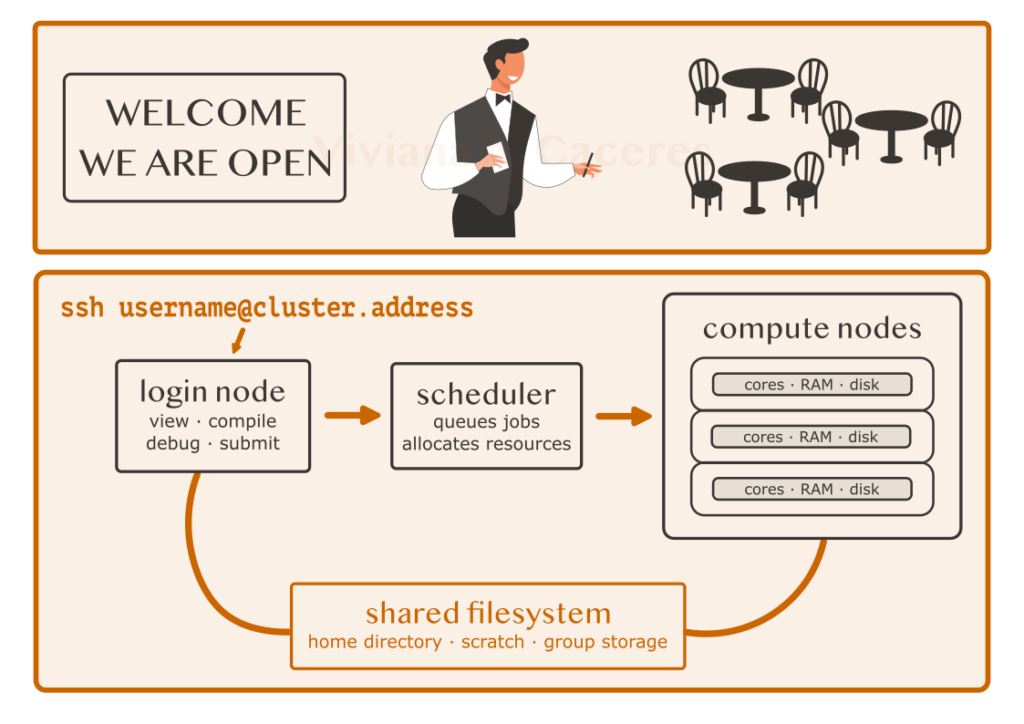
A computer in the cluster is called a node. There are generally two types: the login (or head) node and the compute nodes. On the login node, you compile and debug small programs, review results, run quick tests, and submit jobs for the compute nodes to run. A job is essentially the self-contained code you want to run. It is packaged with (or contains a reference to) the needed resources and handed off to the compute nodes. Jobs should never be run on the login node. It’s a limited, shared resource, and a heavy job will slow it down for everyone else trying to get their work submitted.
Like a laptop, each node has processors and short-term memory (Random Access Memory, or RAM). Long-term disk storage is provided through shared filesystems accessible from across the cluster. Within each node, there are multiple cores. These are the individual units that actually do the computing. This is important because many astronomy problems can be divided into smaller tasks. Instead of one processor working through an analysis sequentially, hundreds of cores can analyze different pieces more efficiently.
Getting in
To access a cluster, you connect to the login node from your own computer using Secure SHell (SSH), a protocol that opens a secure remote connection over a network:
Once connected, you’ll land in your home directory, and a command line will pop up. You’re in! Your account typically comes with an allocation. This is a budget of computing resources and disk usage granted to you or your research group. Just like a financial budget, allocations can run out, so be mindful of how many resources your jobs require and how long they run.
The scheduler
For clusters with thousands of cores and users, who decides which jobs have priority and which nodes they run on? That’s the role of the scheduler. This software acts like an automated restaurant host: you tell the host how many people are in your party and wait to be seated. Similarly, you tell the scheduler what resources your job needs. It finds a node that fits, or queues your job until one becomes free. For example, one might request 8 cores, 8 GB of RAM, a few GB of disk space, and a runtime limit of a few days. Request too little, and your job may be terminated mid-run when it exceeds its allocated resources. Request too much, and it will sit in the queue longer, waiting for a node that fits. Common schedulers include Slurm, HTCondor, PBS Professional, and IBM Spectrum LSF, among others.
It takes some time to develop a sense for what your jobs actually need, so make sure to keep an eye on how much you requested versus how much was actually used. Most schedulers will report this when a job finishes.
Being a considerate cluster user
When sharing computing resources with lots of other people, it’s important to be considerate. However, as a beginner using pretty sophisticated machinery, you may not always know how your actions affect other users. Here are a few things to keep in mind.
Clusters usually have some built-in safeguards. On your laptop, you might install packages system-wide with administrator (“root”) privileges. This is the sudo command on Mac or Linux. On a cluster, regular users don’t have sudo access, and for good reason. One user making system-wide changes could break things for everyone else.
Instead, clusters provide clean ways to load the software you need without altering the underlying system. The most common method is a module system, which is a tool that lets you load and unload pre-installed software packages whenever you need them. For example, you can use modules to load a specific version of Anaconda without changing the version that someone else is using.
Storage is shared, too. Most clusters give you a home directory, a small, backed-up space for your code and scripts. They also give you a scratch directory, a larger space for the big data files your jobs produce. This space is not backed up, and it gets purged regularly, so move the results you care about somewhere safe once your job finishes. Keep an eye on your usage and don’t let your storage space fill up. A full filesystem can cause other users’ jobs to fail, too.
Having access to a computing cluster dramatically increases what you’re able to do as a researcher. All the complicated bits and pieces of your analyses run on hardware that makes your laptop look like a pocket calculator. At first, it may seem like you need advanced software engineering knowledge just to get started, but you don’t. The concepts covered here are enough to get you oriented. Your specific cluster will have its own documentation, and your research group will have its own workflows. Now, the vocabulary will make sense when you encounter it. If you would like to learn more about computing clusters, check out some of the links below. Happy coding!
Useful links:
- What is a cluster?
- What is high-performance computing (HPC)? – IBM
- What is High Throughput Computing? – rescale
- Slurm Documentation
- HPC Wiki
Astrobite edited by Vaishak Prasad and Akshita Mittal.
Featured image credit: Shutterstock.
